Guide
Claude Code on several projects at once
Starting a session in each project is the easy part. Knowing which one is waiting for you, and getting back to that project's editor, terminal and browser, is what takes the time.
Updated
In short
- Claude Code can notify you itself, in Ghostty, Kitty and iTerm2 out of the box and in any terminal with a hook. It's free, and often enough for two sessions.
- To see every session at once, Claude Code's agent view lists your background sessions, and menu bar monitors show which ones wait.
- Layout gives each project a workspace with its own windows, tells you when an agent in another project needs you, and lets you answer its permission requests from a card.
Let Claude Code tell you
Claude Code fires a notification when it finishes a task or stops for a permission prompt while you seem to be away from its terminal. In Ghostty and Kitty, that becomes a macOS notification. iTerm2 needs it turned on first: in its Settings › Profiles › Terminal, check Notification Center Alerts, then click Filter Alerts and turn on Send escape sequence-generated alerts. In other terminals, set preferredNotifChannel to "terminal_bell" in ~/.claude/settings.json for a bell, or use a hook.
A Notification hook runs a command each time. This one, in ~/.claude/settings.json, shows a macOS notification from any terminal:
{ "hooks": { "Notification": [ { "hooks": [ { "type": "command", "command": "osascript -e 'display notification \"A session is waiting for you\" with title \"Claude Code\"'" } ] } ] }}If the file already has a hooks key, add Notification next to the events in it. Type /hooks in Claude Code to check that it’s loaded. macOS shows these notifications as coming from Script Editor: if Script Editor isn’t allowed to send notifications, in System Settings › Notifications, nothing appears, and macOS doesn’t ask.
A notification says that a session is waiting, not where. With sessions in four projects, you still have to find the right terminal, then the editor and the browser that go with it.
See every session in one place
- Claude Code’s agent view.
claude agentslists your background sessions from every project, with what each one is doing and which ones need your input. A session started in another terminal shows there once you send it to the background. - The Claude app and Codex. Each one keeps its sessions in a single window, with a sidebar to go from one to another.
- Menu bar monitors, such as Agent Sessions or Claude Island, show which sessions are working and which are waiting for you.
- Parallel-agent apps, such as Conductor, run several agents side by side, each one isolated from the others.
- One terminal for everything. tmux, or cmux, a terminal that keeps a notification for each pane, holds every session in a pane or a tab.
These show you the sessions. The rest of each project, its editor, the terminal running its dev server and its browser tabs, stays wherever you left it, among the other projects’ windows.
A workspace per project, with Layout
Layout is a workspace manager for macOS. Each project gets a workspace with its own windows, and one shortcut switches between them. With agents running in several projects:
- Each project comes back whole. Launching a workspace opens its editor on the project folder, its terminal with commands such as
pnpm dev, and its browser tabs. Switching to it brings back the project’s chat in Claude’s Code tab or in Codex. - You see where an agent waits. When Claude Code, Codex or Cursor asks for you or finishes in another workspace, a card comes down under the Layout bar with what the agent said, and the workspace is marked in the bar and in the switchers.
- One shortcut takes you there. ⌃⌥N goes to the next agent, the ones asking for you first: its workspace, its window, and the session itself, in Claude, Codex, a terminal, tmux or cmux.
- You answer from the card. When Claude Code or Codex asks to run a command, edit a file or use a tool, the card has Deny and Allow. Claude Code’s questions and plans come to the card too, with their answers, or with Keep planning and Approve.
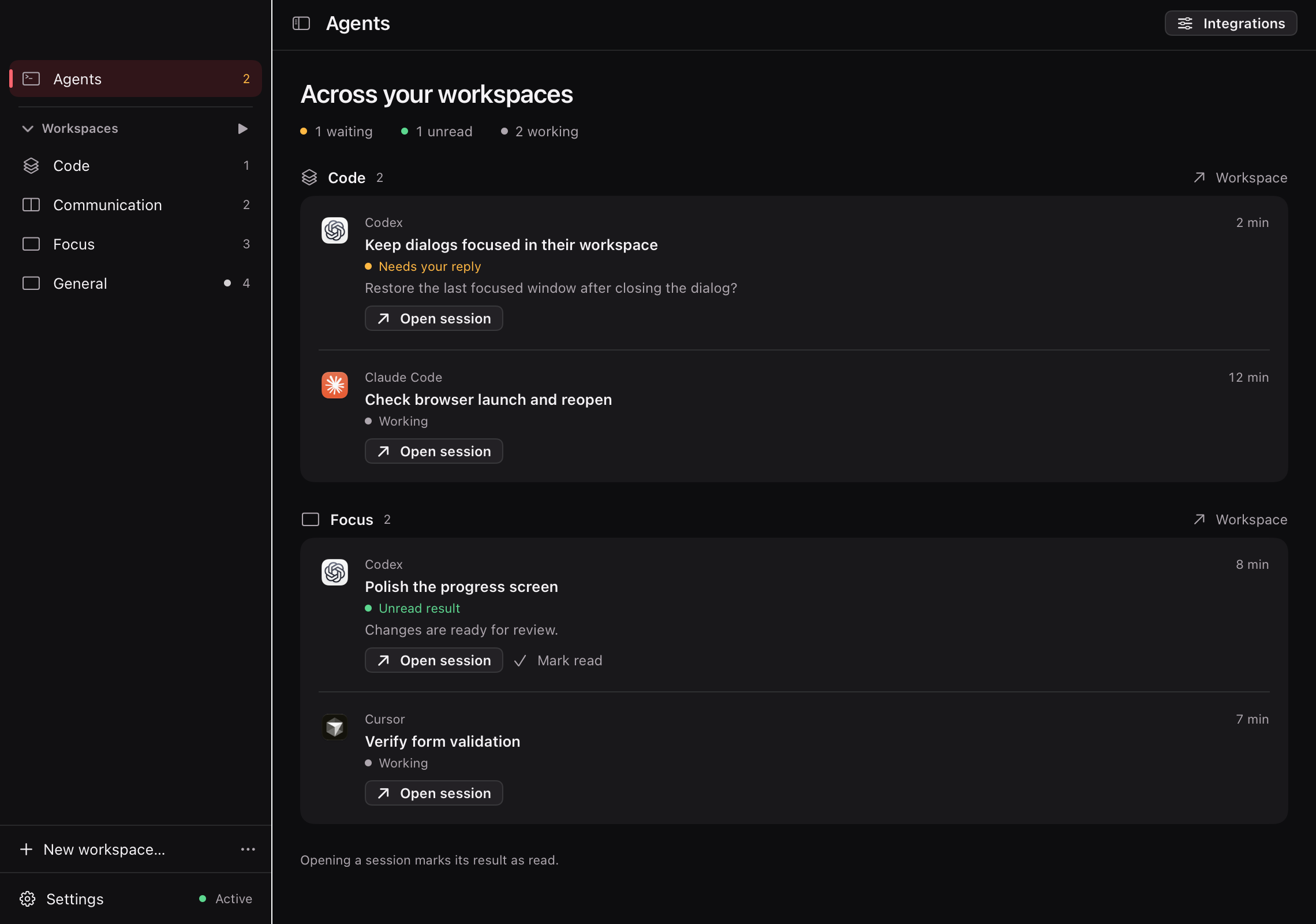
- Every session in one list. ⌃⌥Tab opens Focus Agent, with the sessions that need your reply first, then unread results. The Agents dashboard groups them by workspace, as in the picture above.
Connect your agents
- In Layout, open Settings › Integrations. Under Agents, click Add next to Claude Code, and next to Codex or Cursor if you use them. Layout adds its hooks after the ones already in the agent’s file, and keeps the previous version of the file next to it.
- Give each project a workspace with its folder. New Workspace from Project… lists your Claude and Codex projects.
- Start new Claude Code sessions: they use the hooks. Codex asks you to review the new hooks the next time it starts.
An agent marks the workspace whose folders hold the folder it works in. A git worktree counts as its repository, so an agent working in a worktree marks the project’s workspace. See Agents and Focus Agent for the details.
What Layout doesn’t do
- It doesn’t run your agents. Layout doesn’t start, schedule or isolate them. Keep running them as you do now: in a terminal, tmux, cmux, the Claude app or Codex.
- It only sees this Mac. Its hooks report the sessions on your Mac. Cloud sessions don’t appear.
- Some requests stay in the agent. Cursor’s hooks don’t report approval prompts, so they make no card. Codex keeps asking its questions itself: only its permission requests come to the card.
Session states and what the agents said stay on your Mac. See Privacy.
Want to see it first? In the browser demo, start the agents and answer Claude, Codex and Cursor across three projects.