Comparison
Layout vs AeroSpace
Both keep their own workspaces instead of macOS Spaces, and both are driven from the keyboard. AeroSpace tiles every window into a tree you configure in a text file. Layout gives each project a workspace with the apps, folders, tabs and chats it needs, set up in an app.
Updated
In short
- Pick AeroSpace for i3-style tree tiling, a config file you keep with your dotfiles, a separate workspace on each display, and free, open-source software.
- Pick Layout for a workspace per project that launches its editor, terminals and browser tabs, brings back its Claude or Codex chat, and tells you when an agent in another project needs you.
- You can't run both at once. Layout won't activate while AeroSpace is running.
What they have in common
Both replace macOS Spaces with workspaces of their own. When you switch, the windows of the workspace you leave move to a corner of the screen, out of sight, and the others come back where they were. There’s no slide, and neither one asks you to turn off System Integrity Protection: both work with the Accessibility permission. macOS never lets an app push a window fully off screen, so with either one, a thin edge can show in that corner.
Both are made for the keyboard, with a shortcut for each workspace and a command-line tool for scripts.
Side by side
| AeroSpace | Layout | |
|---|---|---|
| A workspace is | A set of windows, tiled in a tree | A project: its windows, its layout, and what its apps open |
| Arranging windows | i3-style tree, with tiles and accordion layouts | Zones from a template, stacks of apps in a zone, floating apps |
| New windows | Tiled into the tree | Join the zone you pick for them, or float where the app opens them |
| Setup | A TOML file, ~/.aerospace.toml, with no GUI |
An editor and a Settings window, with Export and Import |
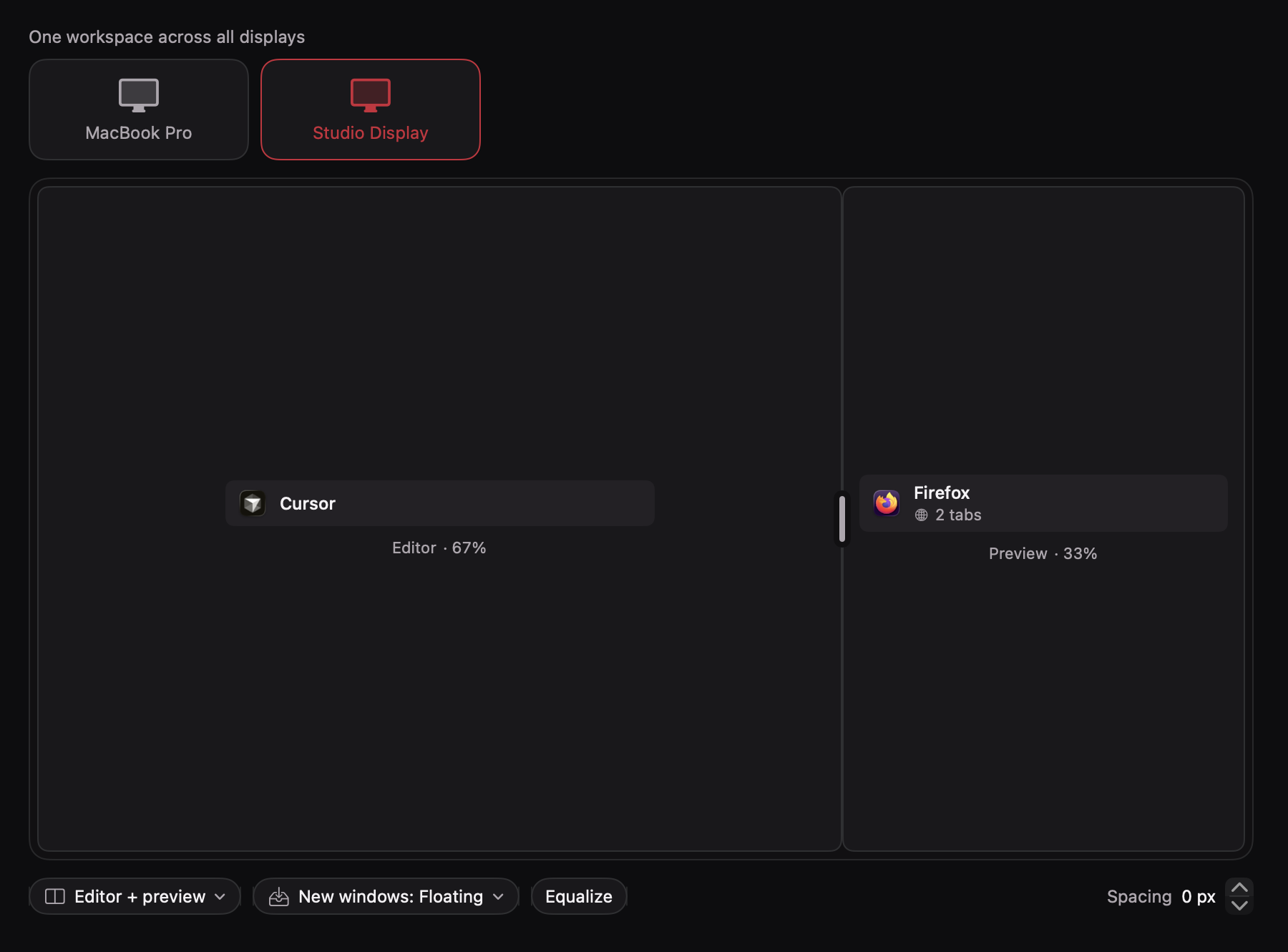
| Several displays | Each display shows its own workspace | A workspace spans every display, and they switch together |
| Opening a project | Commands you write in the config | Launch opens its apps with the project folder, terminal commands and browser tabs |
| Chats and channels | Not part of it | Switching brings back the project’s Claude or Codex chat and its Slack channel |
| Agents | Not part of it | A card and ⌃⌥N when Claude Code, Codex or Cursor needs you |
| Trackpad | Not part of it | Swipe between workspaces, and swipe up for the Layout Overview |
| Command line | aerospace, with commands for nearly everything |
layoutctl: list, switch, launch, stop, subscribe, notify |
| Install and updates | Homebrew cask, not notarized | Notarized download or Homebrew, with updates offered in the app |
| Stage | Public beta: breaking changes expected until 1.0 | Early access until 1.0 |
| macOS | 13 Ventura or later | 14 Sonoma or later, Apple silicon and Intel |
| Price | Free and open source, MIT license | $19 once, with a 14-day free trial |
Where AeroSpace is the better pick
- You want a tiling tree. AeroSpace splits, joins and resizes windows in an i3-style tree, from the keyboard, and fits every new window into it. Layout places windows in zones you draw once for each workspace: they don’t rearrange themselves as windows come and go.
- You want each display on its own. In AeroSpace, every display shows its own workspace. In Layout, a workspace spans all your displays, and switching changes them all.
- Your setup lives in dotfiles. AeroSpace’s whole configuration is one text file, and its README says it will never have a settings window. Layout keeps its configuration in its own folder: you can export it to a file, but you edit it in the app.
- You want free and open source. AeroSpace is MIT-licensed. Layout is a paid app.
Where Layout is the better pick
- Your workspaces are projects. Launch a workspace and Layout opens its apps on the project: the editor on its folder, the terminal running commands such as
pnpm dev, the browser on the project’s tabs. - Your apps switch with you. Going back to a project brings back its chat in Claude’s Code tab or in Codex, and its Slack channel.
- You run agents in several projects. When Claude Code, Codex or Cursor asks for you or finishes in another workspace, a card says so, and ⌃⌥N takes you to that session. You can allow or deny Claude Code’s and Codex’s permission requests from the card. See Claude Code on several projects.
- You’d rather set it up in an app. Workspaces, zones and shortcuts are made in an editor, and a guided setup walks you through the first launch.
- You use a trackpad. The swipe that moves between desktops moves between workspaces, and the swipe up opens the Layout Overview, with every workspace and its windows.
- You want an app macOS trusts. Layout is notarized by Apple, and it updates when you choose to.
Switching from AeroSpace
Most of what an AeroSpace config does has a place in Layout:
| In AeroSpace | In Layout |
|---|---|
alt-1 runs workspace 1 |
Each workspace has its shortcut, ⌃⌥1 to ⌃⌥9 at first. Record other keys in Settings › Shortcuts |
alt-tab runs workspace-back-and-forth |
A quick ⌥Tab goes back and forth too, and holding it lists your workspaces |
alt-shift-1 runs move-node-to-workspace 1 |
A workspace’s shortcut with ⌘ added sends the window you used last there, or use Move To |
on-window-detected rules that send an app to a workspace |
The app added to that workspace’s Apps, in a zone |
The accordion layout |
A stack: several apps share a zone, one in front |
layout floating for an app |
A floating app, at the size and place you choose |
exec-and-forget commands that open your tools |
Launch, which opens the workspace’s apps with their folders, commands and tabs |
aerospace workspace api and aerospace list-workspaces --all |
layoutctl switch api and layoutctl list |
start-at-login = true |
Open at login in Settings › General, and Launch at Login for the workspaces you want open |
Before you turn Layout on
- Quit AeroSpace from its menu bar icon. If your config has
start-at-login = true, set it tofalse, or AeroSpace comes back at your next login. - Quit what your config started. AeroSpace’s docs suggest starting JankyBorders (
borders) withafter-startup-command. It keeps running after AeroSpace quits, and keeps drawing borders around windows, including the ones Layout keeps out of sight in the corner. Quit it withkillall borders, and take it out of your config. - Make a workspace for each project. New Workspace from Project… lists your Claude and Codex projects, or takes any folder, and proposes the editor and terminal to open there. See Your first workspace.
When AeroSpace quits, it puts every window back on screen. Layout then starts with all of them in General, the workspace that holds every window no other workspace has, until you give them workspaces of their own.