Guide
Mission Control in macOS 27: what's broken and what helps
Since macOS 27 Golden Gate came out, people who live in Spaces have reported desktop shortcuts that stop working, black screens and slow switches. Here's what's known, what helps today, and a way to switch projects that doesn't go through Spaces.
Updated
Checked on October 21, 2026, with macOS 27.0.1. Apple hasn't said which update fixes Mission Control. This page changes when one does.
In short
- Restarting the Dock brings the desktop shortcuts back for a while. Mission Control and Spaces run inside it.
- Turn off the automatic rearranging of Spaces, so that Control and a number always lead to the same desktop.
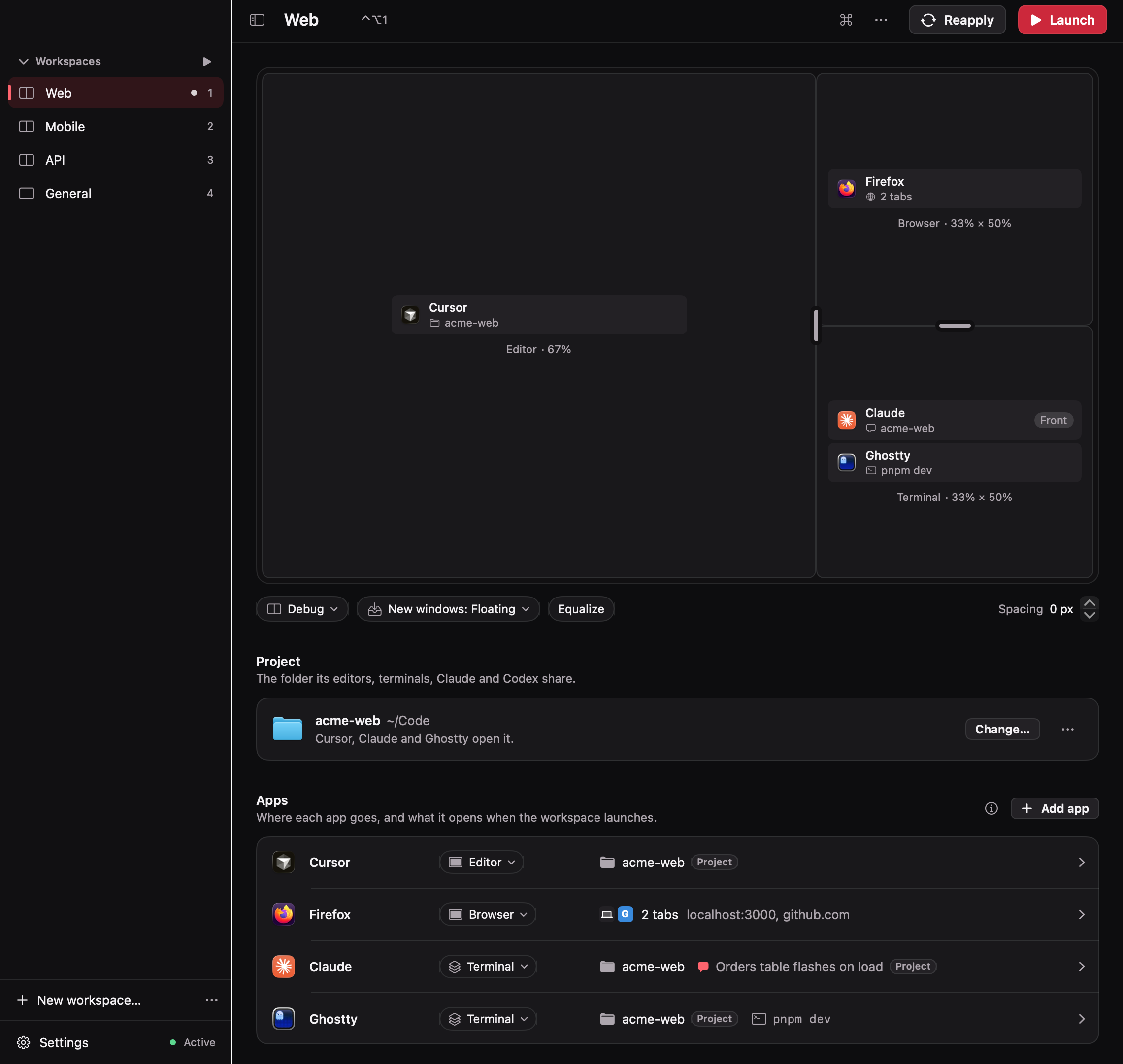
- If each desktop is a project, Layout's workspaces can replace them on a single desktop, with shortcuts of their own that keep working after sleep.
What people report
Since macOS 27 came out on September 14, 2026, people have described these problems in TechRadar’s roundup, on Hacker News and on Reddit. Not every Mac has them, and people who installed 27.0.1 say it didn’t fix them.
- Desktop shortcuts stop working. Control-1, Control-2 and the other Switch to Desktop shortcuts stop switching, often after the Mac wakes from sleep or a display reconnects. Sometimes only Control-1 still works.
- Black screens. Dragging a desktop to another display can leave a black, unresponsive screen behind it, and switching to a full-screen app sometimes shows a black screen.
- Slow switches. The animation judders, and a switch can leave the screen dimmed and unresponsive for a second or two.
What helps today
-
Restart the Dock. Mission Control and Spaces run inside the Dock. In Terminal, run:
Terminal window killall DockThe Dock comes back by itself a second later, and your windows stay where they were. People report that the shortcuts then work again, for about an hour.
-
Keep your desktops in order. In System Settings › Desktop & Dock, under Mission Control, turn off Automatically rearrange Spaces based on most recent use. Otherwise macOS reorders your desktops as you use them, and Control-1 doesn’t always lead to the same one.
-
Get rid of a black screen. On the display that went black, add a desktop in Mission Control, switch to it, then remove it.
-
Shorten the slide. Turning on Reduce motion, in System Settings › Accessibility, replaces the slide between desktops with a fade. It doesn’t remove the wait.
Apple hasn’t said which update fixes these. Check the notes of each macOS update.
Or switch projects without Spaces
If you keep a desktop for each project, what you need from Mission Control is a shortcut for each project, and your windows where you left them. Layout does that on a single desktop, without Spaces:
- Shortcuts of its own. Layout reads the keyboard itself instead of going through Mission Control, so its workspace shortcuts keep working after your Mac sleeps or a display comes back. You can give them Control-1 to Control-9: Coming from Spaces shows how.
- No slide. A switch moves the windows you leave out of sight and brings the others back where they were.
- Projects, not only windows. Launching a workspace opens its editor on the project folder, its terminal commands and its browser tabs, and switching to it brings back its Claude or Codex chat.
- The same gestures. The swipe between desktops goes from one workspace to the next, and the swipe up opens the Layout Overview, with every workspace and its windows, drawn from what Layout knows rather than from screenshots. Swiping up again opens Mission Control, for your other desktops and full-screen apps.
Before you try it
- One desktop per display. Layout works on the desktop showing on each display. It doesn’t see the windows on your other desktops, and it doesn’t switch while one of them, or an app in full screen, is showing. Remove the desktops you don’t need first: macOS moves their windows to the ones left.
- Displays switch together. A workspace spans every display, so one display can’t show another workspace on its own.
- After a restart of your Mac, the windows macOS reopens start in General, the workspace for windows that have no other, until you launch your workspaces or set them to launch at login.
Coming from Spaces maps each Spaces habit to Layout.